
Saying No to Notifications
Fixing Unproductive Defaults, on Substack and Beyond

The war for your attention isn’t going anywhere, and the phone in your pocket is the main battlefield. Whether you’re trying to get deep work done, pay attention during a meeting, or even just make the most of your leisure time, your goals should be to consume different types of information at frequencies which align with their importance and urgency and to limit the total number of pulls on your focus.
Your opponent’s goal, whether they are a social media platform, consumer app, or increasingly even an enterprise corporate app, is to maximize the amount of time you spend with them, and that should set off alarm bells.

Don’t show up to this fight unarmed and unprepared.
My Approach to Managing Productive Notifications
First, turn off every type of notification within an app’s settings. Start from a clean slate, not from their aggressive defaults.
Next, review each individual notification option within the app and, before turning it on, articulate a clear reason why you’d ever need to be notified about it. Stick to actionable information. Notifications are a cheap buffet before a luxury dinner – you should not be trying to fill your attentional plate with what you see here.
Then, for each notification, pick the appropriate review frequency:
Notification Frequency Tiers
Near-real-time review
Notification type: Audio or haptic notifications will always pull your focus. Use them only for important communications that are often timely and occasionally urgent. (Use more persistent notification types, e.g. lock screen, in addition to sound.)
My Examples: DMs and text messages are easy candidates for this tier, but you actually might not include them all: I mute almost all group chats as well as many never-urgent 1-on-1 messages – nothing personal! – and review them at the next tier down. It’s a big help for minimizing pulls on my focus, and I’m not even that popular.
A few times per day
Notification type: Silent notifications that accumulate on your lock screen, notification center and/or app badges won’t interrupt your work but are easy to review as a queue.
My Examples: This is my “email speed” layer; every hour or two, after I review my email inbox, I’ll go through my other visible notifications such as muted text threads, social media direct messages and news alerts.
Once per day
Notification type: iOS’ Scheduled Summary feature lets you batch notifications from certain apps to be delivered at set times each day.
My Examples: I use a daily morning batch to review updates in Google Docs. Certain social media activity could fit here.
Eventually🤷♂️
Notification type: None. Low-importance queues work better as a “pull” rather than through push notifications. Just see them whenever you next open the app.
My Examples: Non-DM LinkedIn activity, such as likes. They can wait, and real-time social media validation seems like a drug worth avoiding.
Here’s an example of how I put these principles into practice for myself for the newest app I installed.
Case Study: Substack
I’m on Substack because it’s the best product for managing this newsletter, and while I do explore the ecosystem and community, I do so deliberately. The Substack app would really rather I do this constantly, as not only are its default notifications gratuitous and pushing of clickbait, but it resists suitable configuration in at least three ways.
(UPDATE, Feb 3, 2026:) Substack just sent me a push notification with performance metrics for my newsletter, despite me having no push notifications enabled for anything remotely related to this. Four strikes is enough. I have now, out of necessity, turned off all Substack notifications on my phone. I’ve preserved the information below in its original form to remain an instructive case study for a theoretical app similar to Substack but with less overt disregard for its users’ focus. But I’ve changed my notification setup as follows:
I’m no longer able to see anything from Substack “a few times per day” via push notifications.
Replies, mentions, and chats now fall into the “once per day” tier via email notifications instead of push notifications, and perhaps I will try creative filtering to let these hit my inbox unread while doing the Daily Followups workflow described below for likes, followers, etc.
Everything else I might have wanted push notifications for, such as new chat threads or replies, now falls into the “eventually🤷♂️” bucket.
But my method led me to a solution:
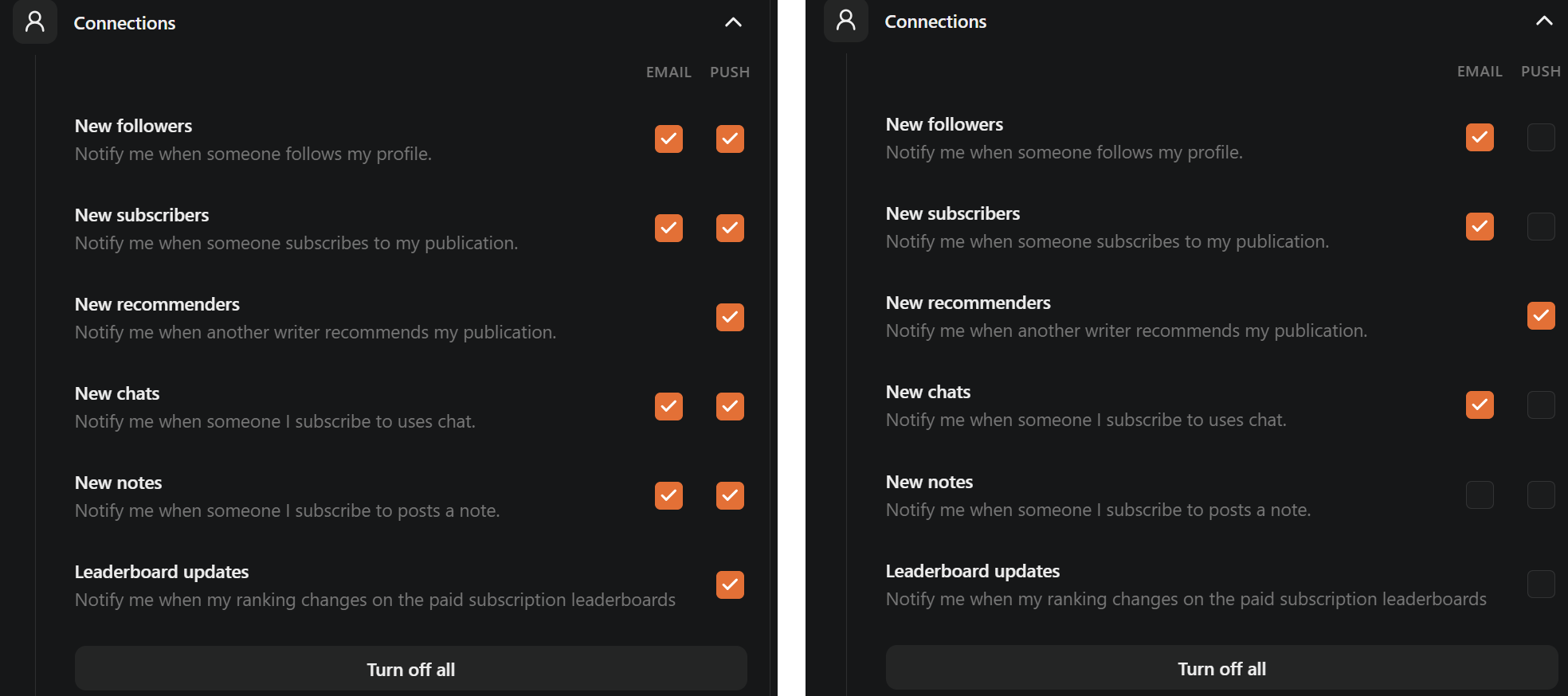
I started by turning off all of the abundant notifications.
Push notifications are not appropriate for newsletters, which can never be urgent. (If you got an app push notification for this post, I’m more concerned than flattered.)
Substack does allow for a wide variety of granular notifications to be delivered via email, push or both, which I’m leveraging to achieve three tiers of notifications:
A few times per day
What: Replies, mentions, chats, DMs and links to my posts
Why: I would like to have conversations with my audience, but these messages would never be urgent enough to break my focus.
How: Silent push notifications via lock screen banners. Note that Substack serves badge notifications for all sorts of actions, including activity for which I’ve turned off push notifications and activity which doesn’t even appear in the notifications section (strike one, Substack…), so leaving badge notifications on is completely untenable.
Once per day
What: Likes of posts, restacks, new followers, new subscribers, Substack feature updates.
Why: A daily digest of all positive feedback is useful for tracking interest.
How: Substack hasn’t built any time-sensitive notifications for Scheduled Summary in iOS (strike two…) so I had to do this the hard way: set each of these notifications to only email, then build a Gmail filter to mark emails from no-reply@substack.com and reaction@mg1.substack.com as read while moving them to my Daily Followups tag.
Eventually🤷♂️
What: Likes of notes (completely unconfigurable as a notification, strike three…), everything else around suggestions, leaderboards, milestones, push-only growth insights, etc.
Why: Generally not actionable.

Put it into Practice
Try my process for yourself. On iOS, the Screen Time → See All App & Website Activity section of Settings will rank all of your apps based on the quantity of their notifications. Android has a similar feature (Notifications → App notifications). Start at the top and work your way down.
Also, opt out of app-speed experiences when you can. I’ve always read Substacks through email or RSS (here’s this newsletter’s RSS feed), and I invite you to do the same for me.
But if you do choose to risk your attention on the frontlines, here or elsewhere, put a plan into place before you enter the fray.
Hugely agree. The push vs pull notifications approach is one I've adopted zealously, to the point that I'm constantly trying to force my friends to do the same when their phones are just nonstop lighting up with things.